
How Data Migration Works
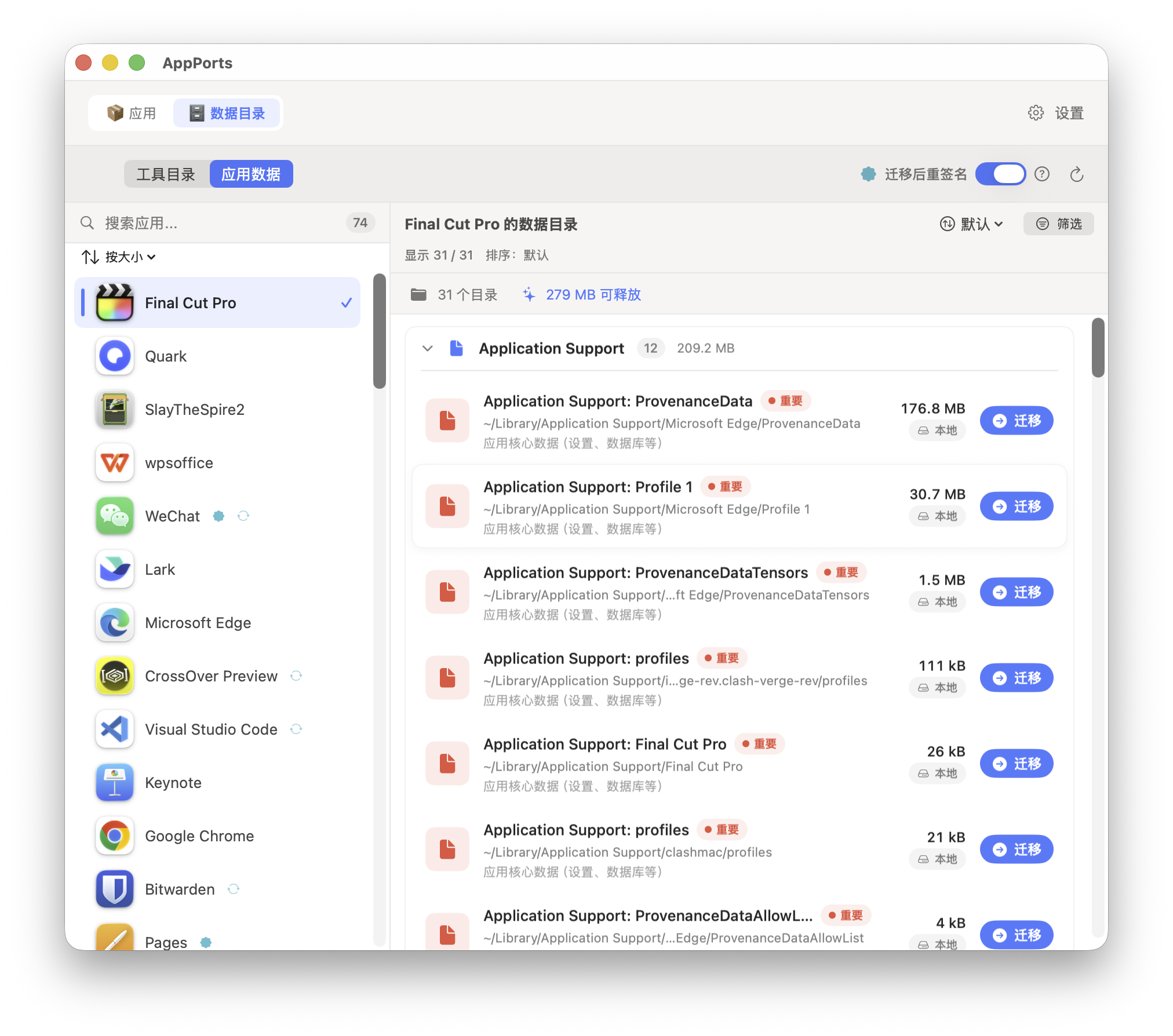
AppPorts moves an app's associated data directories to an external drive to free up local space. It uses two strategies, depending on the directory's location:
| Directory | Strategy | Reason |
|---|---|---|
~/Library/Containers/, ~/Library/Group Containers/ | Mount migration | The sandbox checks the resolved path and rejects symbolic links that lead outside the container |
Other ~/Library/ subdirectories, tool directories, and custom folders | Symbolic links | These are not restricted by the sandbox, so symbolic links are the simplest approach |
This page covers symbolic links. For the other strategy, see Mount Migration.
Symbolic-Link Strategy
- Copy the entire local directory to the external drive.
- Write the management marker
.appports-link-metadata.plistto the external directory. - Rename the original local directory to a hidden safety backup on the same volume.
- Create a symbolic link at the original path, pointing to the external copy.
- Remove the safety backup after the link is created successfully.
~/Library/Application Support/SomeApp
→ /Volumes/External/AppPortsData/SomeApp (符号链接)flowchart TD
A[Select data directory] --> B{Check permissions and protection}
B -->|Failed| Z[Stop]
B -->|Passed| C{Check destination conflicts}
C -->|Management marker matches fully| D[Automatic recovery mode]
C -->|Real directory conflict| Y[Stop and report conflict]
C -->|No conflict| E[Copy to external drive]
D --> E
E --> F[Write management marker]
F --> G[Rename to local safety backup]
G -->|Failed| H[Keep external copy and stop]
G -->|Succeeded| I[Create symbolic link]
I -->|Failed| J[Restore local safety backup and keep external copy]
I -->|Succeeded| K[Remove local safety backup]
K -->|Succeeded| L[Migration complete]
K -->|Failed| M[Migration complete with safety backup retained]Management Marker
The .appports-link-metadata.plist file in the external directory identifies it as managed by AppPorts:
| Field | Description |
|---|---|
schemaVersion | Format version, currently 1 |
managedBy | com.shimoko.AppPorts |
sourcePath | Original local path |
destinationPath | External destination path |
dataDirType | Data directory type |
The scanner uses this marker to distinguish AppPorts links from user-created links, and to resume interrupted migrations automatically. Matching is strict: all five fields must agree before a managed directory can be reused. Otherwise it is treated as a conflict. Similar directory sizes are never sufficient reason to take over or overwrite data.
Relinking and normalization work only with directories. AppPorts will not relink a regular external file as if it were a directory.
Supported Data Directory Types
| Type | Path | Strategy |
|---|---|---|
applicationSupport | ~/Library/Application Support/ | Symbolic link |
preferences | ~/Library/Preferences/ | Symbolic link |
containers | ~/Library/Containers/ | Mount |
groupContainers | ~/Library/Group Containers/ | Mount |
caches | ~/Library/Caches/ | Symbolic link |
webKit | ~/Library/WebKit/ | Symbolic link |
httpStorages | ~/Library/HTTPStorages/ | Symbolic link |
applicationScripts | ~/Library/Application Scripts/ | Symbolic link |
logs | ~/Library/Logs/ | Symbolic link |
savedState | ~/Library/Saved Application State/ | Symbolic link |
dotFolder | ~/.npm, ~/.vscode, etc. | Symbolic link |
custom | User-selected path | Symbolic link |
Restore Process
- Confirm that the local path is a symbolic link pointing to a valid external directory.
- Copy the external directory to a local staging directory.
- Delete the symbolic link and rename the staging directory to the original path.
- Delete the external directory on a best-effort basis.
If copying fails, the symbolic link is left unchanged. If renaming fails, the link is recreated and the staging directory is kept for manual recovery.
Error Handling and Rollback
- Copy fails: Remove the external files copied so far and perform no further steps.
- Destination conflict: If a real external directory already exists and its marker does not match, stop and preserve both copies.
- Renaming to the safety backup fails: Stop and keep the external copy; leave the local source unchanged.
- Creating the symbolic link fails: Restore the safety backup to its original path and keep the external copy.
- Removing the safety backup fails: Migration is complete, but a local
.appports-migration-backup-*remains. You can remove it manually after verifying the result.